This guide explains how to apply for and activate an Echobit U Card virtual card, including basic KYC verification, card information submission, identity verification, virtual card activation, available features, and important security precautions.
1. Before You Apply
Before applying for an Echobit U Card virtual card, please make sure you have completed the following preparations:
- Registered Echobit account: Log in to your Echobit account before starting the application.
- Valid identity document: Prepare one of the following documents: passport, driver's license, or national ID card.
- Personal information: Have your English name, email address, phone number, residential address, and other required details ready.
- Accurate information: All application and card KYC information must be provided in English. Make sure your information matches the details on your identity document.
- Basic KYC verification: If you have not completed basic KYC verification for your Echobit account, complete it by following the on-screen instructions before proceeding.
2. How to Apply for and Activate a Virtual Card
Step 1: Open the Application Page and Submit Basic KYC Information
- Log in to your Echobit account and navigate to the U Card page.
- Click Apply for Virtual Card.
- Select your identity document type. You can choose a passport, driver's license, or national ID card.
- Enter the required information, review your details, and submit your application.
If you have already completed basic KYC verification for your Echobit account, proceed directly to the next step.
Web Version
App Version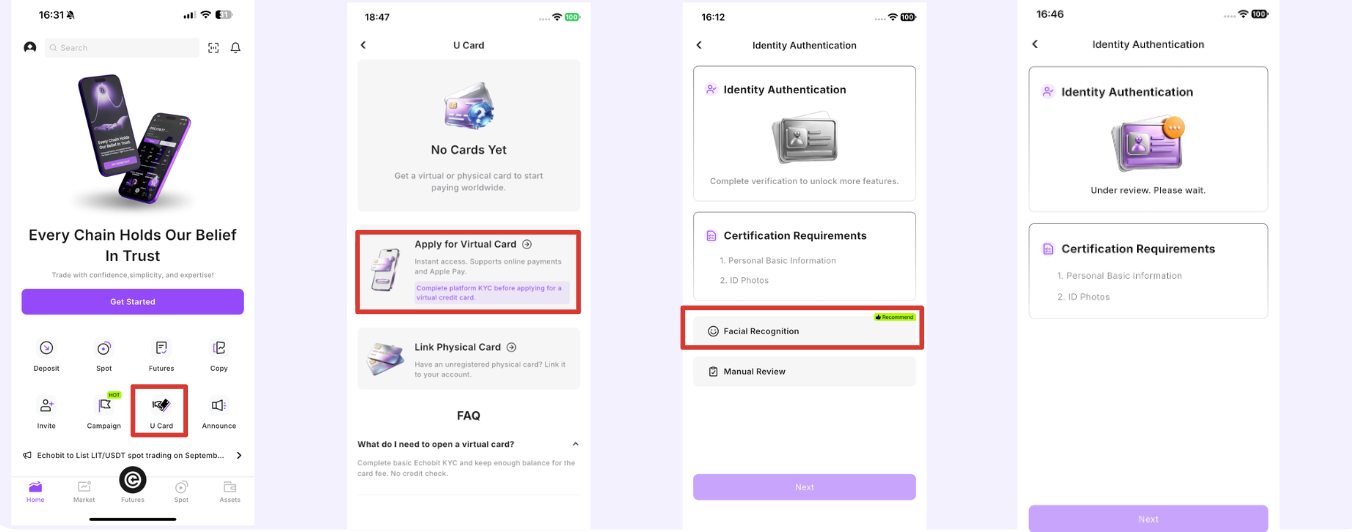
Step 2: Wait for Basic Verification and Complete Card KYC
After submitting your basic verification information, the page may display KYC Under Review, indicating that your information is being reviewed.
Please note the following:
- Do not submit duplicate applications while your verification is under review, as this may affect the processing progress.
- Once basic verification is approved, the system will automatically populate the information that has already been verified.
- Follow the on-screen instructions to provide any additional details, such as your email address and residential address.
- Upload photos of your identity document and a selfie as required to complete card KYC verification.
Web Version
App Version
Card KYC Information Requirements
Please enter all information in English. You may use English letters, numbers, and commonly accepted symbols. The exact fields required will depend on the application page.
Photo upload requirements:
- Ensure that your identity document photos are clear, complete, and legible, with all required information visible.
- Avoid obstructed, blurry, overexposed, reflective, or poorly lit photos.
- When taking your selfie, use a clear, front-facing photo of yourself and ensure adequate lighting.
- Complete all required fields and verification steps as instructed on the page.
Web Version
App Version
The examples provided are for reference only. Please follow the actual requirements displayed on the application page.
Step 3: Wait for Review and Automatic Virtual Card Activation
After submitting the additional information, the system will conduct a risk review. The page may display Under Review while the review is in progress.
Please wait for the review to be completed. There is no need to submit another application.
Once your application is approved, your virtual card will be activated automatically. You can access your activated card under My Cards. No additional card binding is required.
Web Version
App Version
If your application remains under review for an extended period or you experience repeated verification failures, please contact Echobit Customer Support for assistance.
3. What Can You Do After Activating Your Virtual Card?
Once your virtual card is activated, you can manage it from the card page. Available features include:
- Checking your card status and available balance.
- Using Deposit to add funds, subject to the options available on the page.
- Using Transfer Funds to manage fund transfers, subject to the available options.
- Viewing transaction records, including spending and deposit history.
For your account and payment security, sensitive card details, including the card number, expiration date, and CVV, are hidden by default. To view the complete card information, follow the on-screen instructions to complete the required security verification.
Never share your card number, CVV, verification codes, or payment password with anyone.
4. Frequently Asked Questions
1. What should I do if identity verification fails or my virtual card cannot be activated?
Check that your identity document is valid and that all submitted information and photos are clear and accurate. If necessary, try the verification process again in a well-lit environment.
Verification steps that have already been approved are generally retained, so you may not need to restart the entire process.
2. Do I need to apply again if my virtual card has already been activated?
No. If your virtual card has been successfully activated, go to My Cards to check its status and card details. Avoid submitting a duplicate application.
3. How long does the review process take?
Please refer to the review status displayed on the application page. Do not submit duplicate applications while your application is being reviewed, as this may affect processing.
If your application fails verification repeatedly or you need further information about its status, contact Customer Support.
4. Can I freeze and unfreeze my virtual card?
If the relevant feature is available on the page, you can unfreeze a card that you have frozen yourself by following the on-screen instructions.
If the card has been frozen by the system, please contact Customer Support for assistance. Do not submit another application.
5. Security Tips
To help protect your account and card, please follow these precautions:
- Protect sensitive information: Never disclose your card number, CVV, SMS verification codes, or payment password to anyone.
- Use your own information: Do not use another person's identity document or personal information to apply for or bind a card.
- Check your card status: Before making a transaction, confirm that your card is active and available for use.
- Manage frozen cards carefully: Cards frozen manually by you may be unfrozen according to the on-screen instructions. If the system freezes your card, contact Customer Support.
- Be aware of restrictions on frozen cards: Freezing a card may restrict normal purchases, deposits, or other functions. Refer to the actual status and instructions displayed on the platform.
- Complete security verification: Complete any required security checks before viewing your full card number, expiration date, or CVV.
Disclaimer: This guide is for informational and operational reference only. The actual application process, verification requirements, and available features are subject to the information displayed on the Echobit platform. Rules and features may change over time, so please refer to the platform's latest announcements and instructions.
Echobit Official Channels
Website: http://echobit.com/
Linktree: https://linktr.ee/Echobit_Exchange
Twitter: https://x.com/EchobitExchange
Telegram: https://t.me/EchobitOfficial
Facebook: https://www.facebook.com/EchobitOffical